How to Safely Maintain Your Shopify Store
Shopify handles a lot of the heavy lifting but not all of it. Here's what Shopify store owners need to do regularly to keep their site secure, fast, and fully backed up.
Shopify's appeal as a platform is partly built on what it removes from the business owner's plate. Unlike self-hosted solutions, Shopify manages the underlying server infrastructure, handles platform-level security updates, maintains PCI compliance for payment processing, and pushes performance improvements to its core software automatically. For merchants focused on running a business rather than managing a server, this is a meaningful advantage.
But managed does not mean maintenance-free. A Shopify store still requires regular attention to its theme, its apps, its account security, and its data. The tasks are fewer and less technically demanding than on a self-hosted WordPress site, but ignoring them carries the same basic risks: a slower store, a less secure account, and no safety net if something goes wrong.
This guide covers the five maintenance areas that every Shopify store owner should have on their regular schedule.
Theme Updates
Shopify themes control the design and layout of your storefront. Unlike WordPress, Shopify does not push theme updates automatically. When your theme's developer releases a new version, you decide when and whether to apply it. This gives you control, but it also means the responsibility for staying current falls on you.
How to check for theme updates:
Go to Online Store > Themes in your Shopify admin. Your active theme appears at the top of the page. If an update is available from the theme developer, Shopify will display a notification on the theme card.
Before applying a theme update:
Duplicate your current theme before touching it. On the active theme card, click the three-dot menu and select Duplicate. This creates an exact copy of your current theme (including all customizations) and preserves it as a fallback. If the update causes issues, you can re-publish the duplicated version and be back to your previous state in seconds.
Review the update notes if the developer has provided them. A security or compatibility fix should be applied promptly. An update that introduces significant design or layout changes may be worth previewing first using Shopify's theme preview function before publishing.
After applying the update, preview your storefront across desktop and mobile. Check your homepage, a collection page, a product page, and your cart to confirm that the layout and functionality are intact.
SEO relevance: Shopify theme updates frequently include improvements to page load performance, mobile responsiveness, and compliance with Google's Core Web Vitals metrics - all of which affect your store's visibility in search results. A well-maintained theme is more likely to meet the performance thresholds that Google uses to evaluate page experience.
App Maintenance
Shopify apps extend the functionality of your store, handling tasks from email marketing to reviews to loyalty programs. They carry a lower direct security risk than WordPress plugins because Shopify apps communicate through a controlled API rather than running code directly on your site. But they still require periodic review.
Reviewing your installed apps:
Go to Apps in your Shopify admin to see all installed apps. For each app, ask three questions
- Is this app still being actively used?
- Is the developer still maintaining it?
- Does it have access to more store data than its function requires?
To check an app's maintenance status, find its listing in the Shopify App Store. The listing shows when the app was last updated and typically includes recent reviews. An app that has not been updated in over a year, has accumulated recent negative reviews, or whose developer appears unresponsive is a candidate for replacement.
Removing unused apps:
This is one of the most impactful performance improvements available on Shopify, and it is consistently underestimated. Even after you uninstall an app, it may leave behind code snippets injected into your theme such as tracking pixels, scripts or style elements. These can continue to load on every page and slow your store down.
After uninstalling an app, check your theme code for any residual scripts. In Online Store > Themes, click Actions > Edit code on your active theme. Search for the app's name in the theme files. If you find injected code that should have been removed, delete it carefully or ask a developer to do it. Shopify's Help Center documents this process for many common apps.
Reviewing app permissions:
Under Settings > Apps and sales channels, each installed app lists the permissions it has been granted. Review these periodically. A review-collection app probably does not need access to your customer payment details. Revoke permissions that seem broader than the app's function requires.
SEO relevance: Excess app code is one of the more common causes of Shopify performance issues. Slow page load times directly affect both user experience and Google's Core Web Vitals scores, which are a ranking factor. Keeping your app list lean and clean is one of the more direct ways to maintain store performance.
Security Checks
Shopify manages platform-level security centrally, which removes a significant maintenance burden. But your account credentials, staff access, and app permissions are your responsibility and these are the vectors most likely to be exploited.
Enable two-factor authentication:
This is the single most effective security step available to Shopify store owners. Go to Settings > Security in your Shopify admin and enable two-factor authentication on your account. All staff accounts with admin access should also have 2FA enabled. Shopify supports authenticator apps (Google Authenticator, Authy) and SMS verification.
Review staff account access:
Go to Settings > Users and permissions. Review each staff account and confirm that access levels are appropriate for each person's current role. A fulfillment staff member does not need access to payment settings or customer account data. A marketing contractor does not need access to store analytics beyond what their work requires.
Remove accounts for former staff or contractors immediately when their access is no longer needed. Active credentials for people who are no longer associated with your business are an unnecessary and easily closed vulnerability.
Verify your custom domain's SSL certificate:
Shopify provides SSL automatically for your myshopify.com subdomain, but your custom domain's SSL depends on your domain configuration. Confirm that HTTPS is active on your custom domain by navigating to your store URL and checking for the padlock indicator. If you see a security warning, your SSL certificate may need attention. Shopify's Help Center includes guidance on troubleshooting SSL issues for custom domains.
Also confirm that your custom domain registration is set to auto-renew. A lapsed domain registration will take your store offline regardless of everything else being correctly configured.
SEO relevance: An active HTTPS connection is a Google ranking signal and a prerequisite for browser trust indicators. Browsers including Chrome and Safari display security warnings on non-HTTPS pages, which discourages visitors from proceeding, particularly on checkout pages.
Uptime Monitoring
Shopify maintains high platform availability and publishes its infrastructure status at shopifystatus.com. Subscribing to status updates there will alert you to any platform-wide incidents.
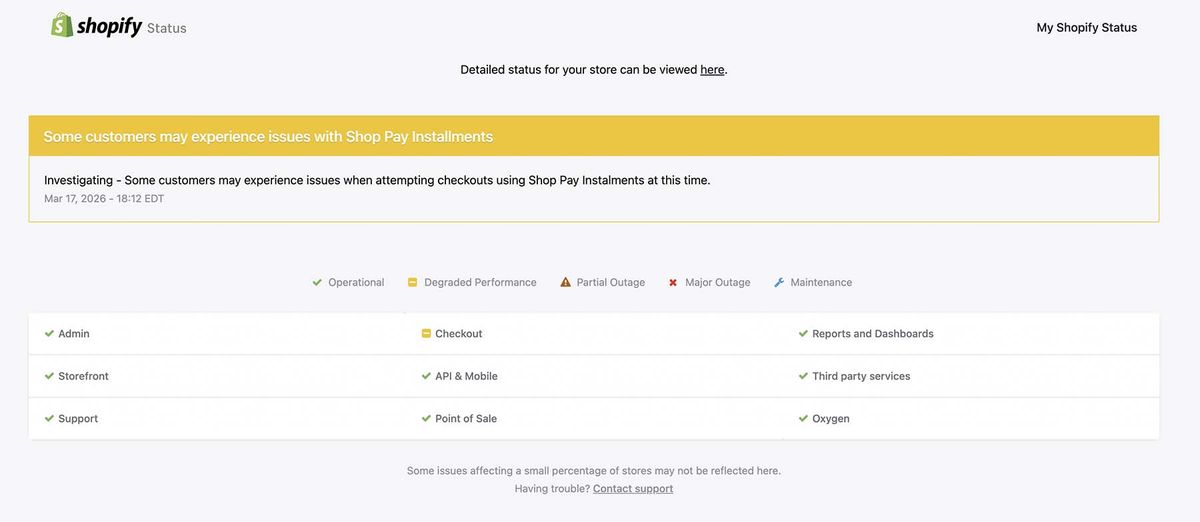
However, platform status does not account for issues specific to your store's custom domain, DNS configuration, or third-party integrations. Your custom domain could have a DNS misconfiguration, an expired registration, or an SSL error that would not appear on Shopify's status page but would prevent customers from reaching your store.
Setting up external monitoring:
UptimeRobot offers free monitoring with checks every five minutes and email or SMS alerts when your store becomes unreachable. Point it at your custom domain URL -- not your myshopify.com subdomain -- so it is monitoring the URL your customers actually use.
For stores where downtime directly means lost revenue, a paid service like Better Uptime or Pingdom offers more detailed incident reporting and faster alert response times.
SEO relevance: Extended downtime affects Shopify stores in two ways: lost revenue during the outage and potential crawl issues if Googlebot visits your store while it is returning errors. Keeping outages short through prompt alerts reduces the SEO impact alongside the revenue impact.
Backup Verification
This is the area where Shopify's managed platform model has its most significant gap. Shopify does not offer native point-in-time backup and restore functionality. There is no "restore to yesterday" button in the admin. If product data is accidentally deleted, pricing is bulk-edited incorrectly, or an app makes unwanted changes to your store, the native tools for recovering from those situations are limited.
Setting up a Shopify backup solution:
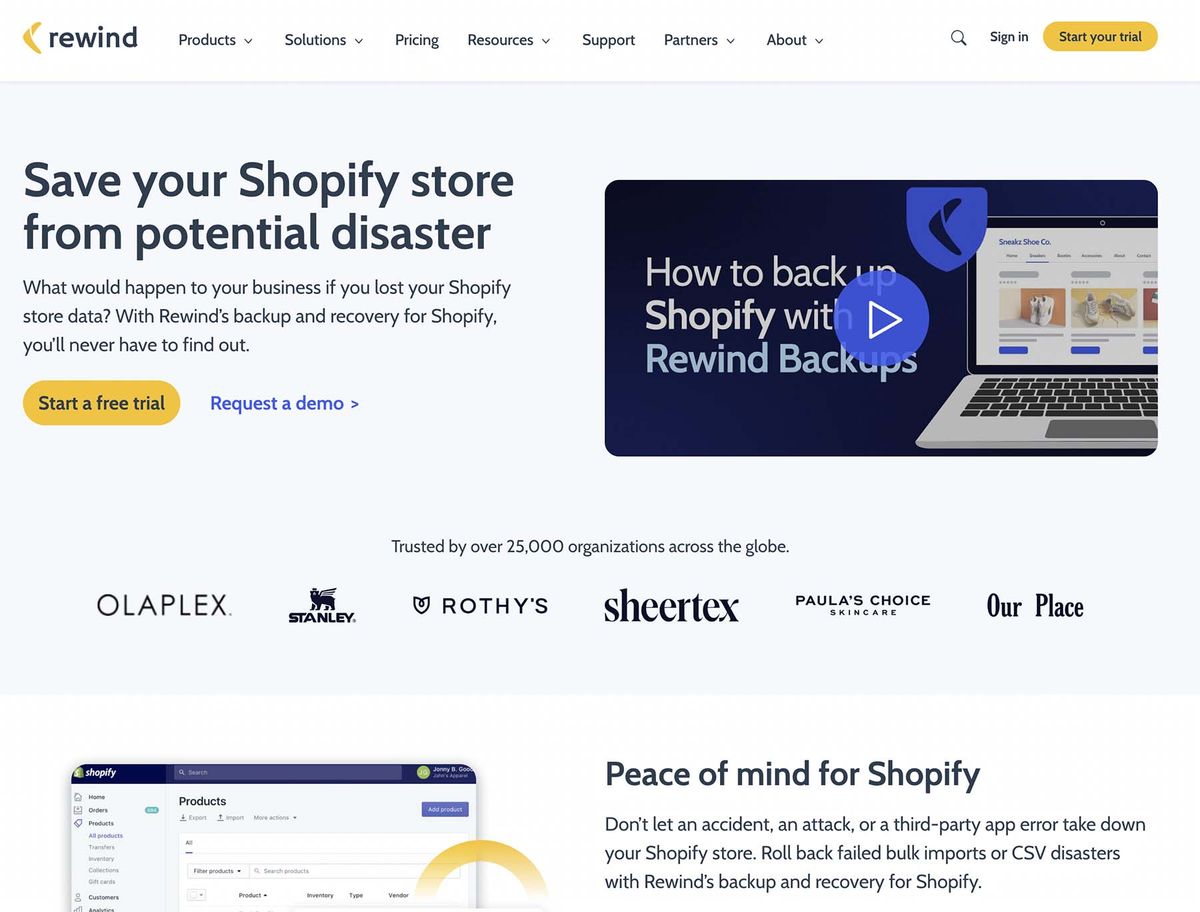
Rewind is the most widely used third-party backup solution for Shopify. It provides automated daily backups of your store's products, collections, customers, orders, metafields, and theme files, and allows you to restore individual items or your entire store. For any Shopify store with a meaningful product catalog or customer database, a Rewind subscription is straightforward risk mitigation.
Manual data exports as a supplementary safeguard:
On a quarterly basis, export your core store data manually from the Shopify admin:
- Products: Go to Products > All products and click Export. Save the CSV file to Google Drive or your local computer.
- Customers: Go to Customers and click Export.
- Orders: Go to Orders and click Export.
These CSV exports are not a complete backup (they do not capture metafields, store settings, or theme customizations) but they give you a recoverable record of your most critical business data in a format you control independently of Shopify.
Testing your backup:
If you are using Rewind or a similar service, perform a test restore of a small number of records on a quarterly basis to confirm the backup is functioning as expected. A backup that has never been tested is a backup that might work when you need it.
Putting It on a Schedule
Shopify maintenance is less demanding than WordPress maintenance, but it still requires consistent attention. A reasonable schedule looks like this:
Monthly: Review pending theme updates. Check the app list and confirm all installed apps are current and still in use. Verify that uptime monitoring is active. Confirm 2FA is enabled on all admin accounts.
Quarterly: Review staff account permissions and remove any that are no longer needed. Export product, customer, and order data manually. Test a restore from your backup service. Check your custom domain registration and SSL status.
Annually: Review all app permissions and remove any that seem excessive. Confirm auto-renewal settings on your custom domain and any associated email services.
Shopify maintenance done right can be done safely and routinely. If you'd rather have someone handle it for you, Mithril Media offers maintenance retainers that keep your site updated, backed up, and monitored.
Get a Free Website AuditFollow along on Substack to receive the latest articles in your inbox